How do I search for a particular part using Scope filter? Follow

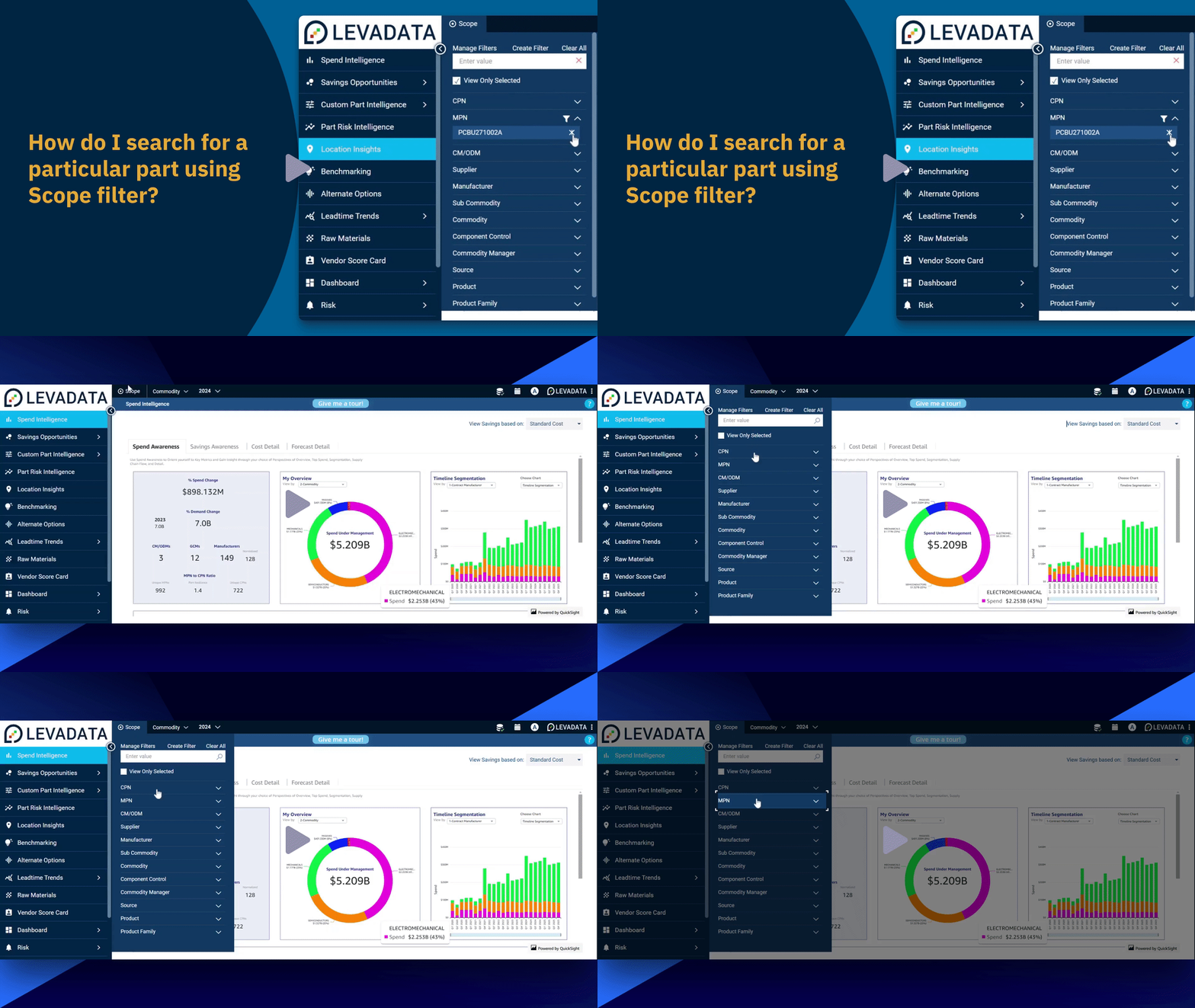
In this video, we demonstrate the process of using the scope feature to efficiently search for and filter parts within the Levadata platform.
Step-by-Step Guide
Select Scope: Begin by selecting the scope option from the horizontal navigation bar.
-
Choose Search Criteria:
Click on MPN or CPN depending on your search criteria to expand and view available parts.
Alternatively, type in the search box to find a specific part.
Complete Selection: Choose from the result options to complete your selection and apply the filter.
Automatic Updates: Charts and tables on the screen will automatically update to match the criteria defined by the applied filter.
Consistent Application: When navigating to other features such as location insights, the scope filter remains in place.
-
Modify Filter:
To change the filter selection, click on the scope filter again.
Opt for view only selected to conveniently access your selected items.
Uncheck Filters: If you choose not to apply a certain filter, you can uncheck your earlier selection.
Reset Filters: To reset several filters quickly, select clear all.
Thank you for watching this video on using the scope feature to search for a specific part. We have illustrated how to search for a part using the scope filter and how this selection is consistently applied across different screens in the Levadata platform.
Comments
0 comments
Please sign in to leave a comment.