How to Export Data to CSV or Excel? Follow

In this video, we will guide you through the process of exporting data to CSV or Excel. Users of the Levadata platform often want to export data to perform their own analysis on their local machine.
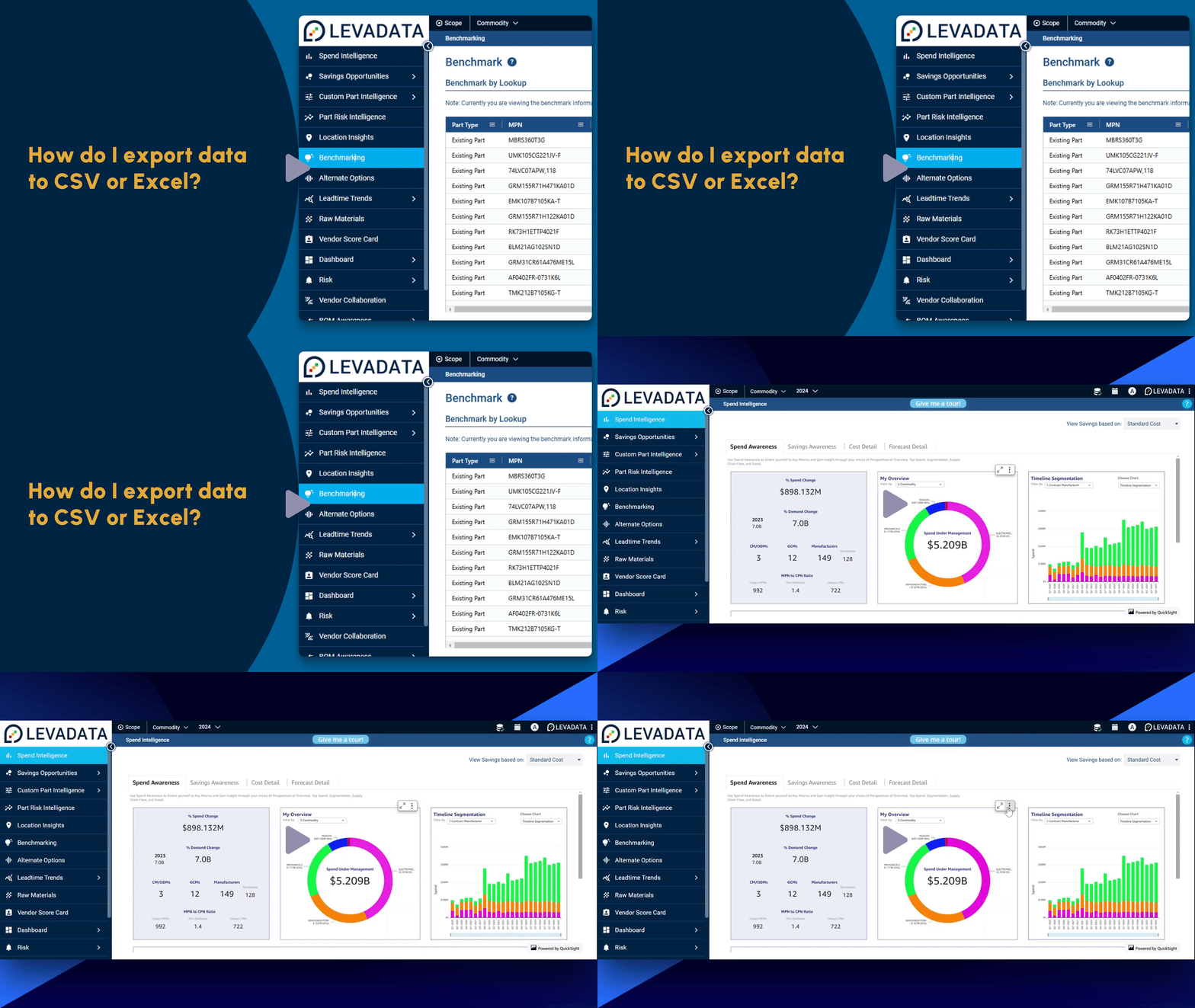
How to Export Data
Locate the three-dot menu icon in the top-right corner of any chart or table you wish to export.
Click the icon to find the export options.
Choose between exporting in CSV or Excel format.
Exporting to CSV
When using the Export to CSV option, you will be able to see all values populated across individual rows in the exported CSV file.
Exporting to Excel
If you decide to use the Export to Excel option, the Excel workbook export maintains the table's original state, preserving all merged and minimized cells as seen in the application interface.
Additional Scenarios
Let's examine a few more scenarios of exporting data to your local system:
When using Benchmarking, the Export option is situated in the top-right corner of the screen. Due to the data format in this tab, Excel is the default format for exports.
For alternate options, you can find the Export option located in the top-right corner of the screen.
Thank you for watching this video on exporting data in Excel or CSV formats. We demonstrated how to export necessary charts or tables to your local system, while also highlighting the differences in the Excel and CSV formats.
Comments
0 comments
Please sign in to leave a comment.