How to use the Scope feature to create filters? Follow

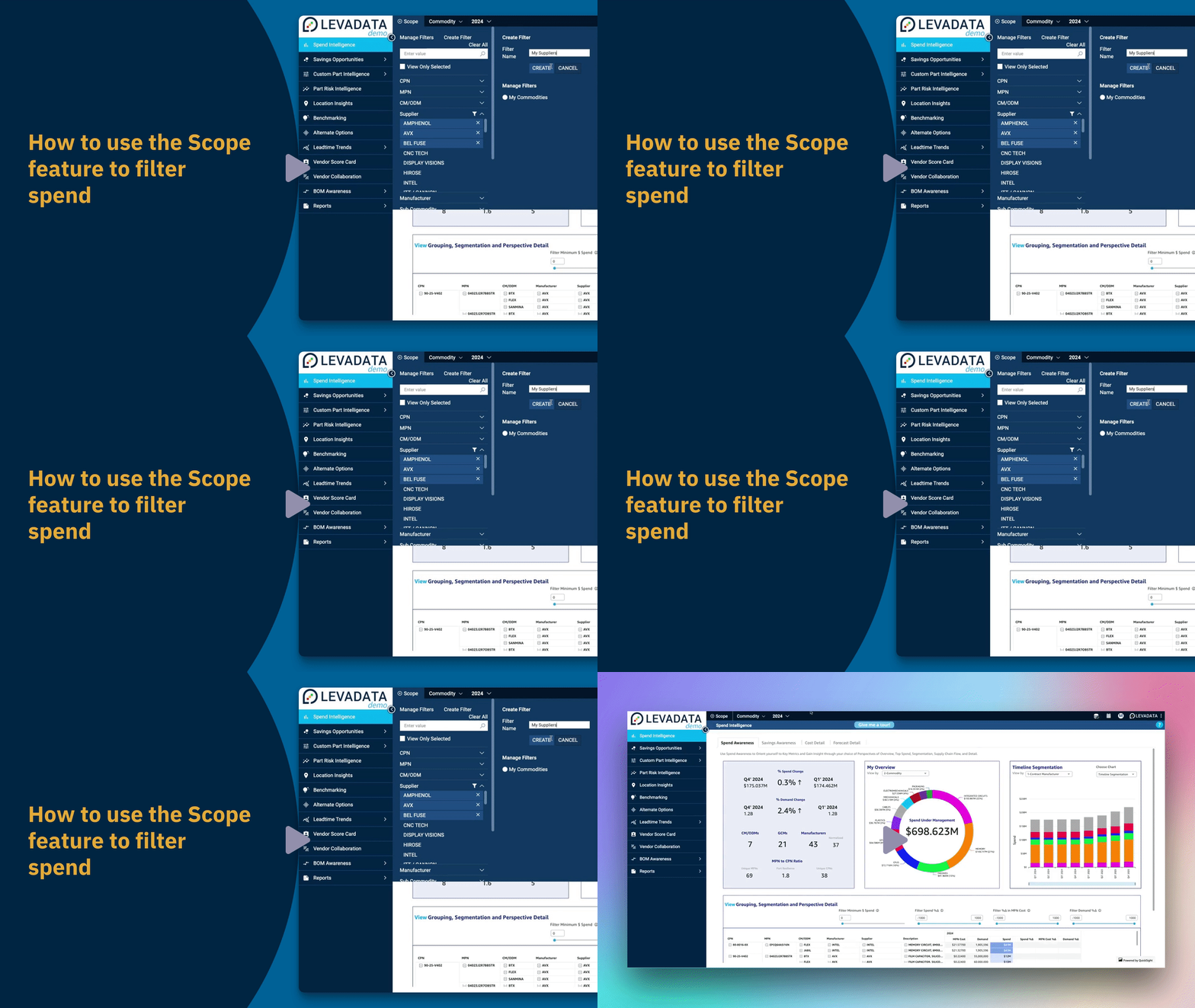
In this video, we will explore how to use the scope feature to filter spending and create personalized filters in LevaData. This will help you efficiently apply these views every time you log in. As a commodity manager responsible for GPUs and CPUs, follow these steps to set up a scope filter for these parts:
Step-by-Step Guide
Setting Up a Commodity Filter
Select Scope from the horizontal navigation bar.
Go to the menu bar and select the Commodity Filter to view the drop-down options.
Select CPUs from the commodity drop-down.
Add GPUs from the commodity drop-down list.
Click on the Manage Filters button in the navigation bar to view selected filters.
Press the Create Filter button in the navigation bar to start creating a new filter.
Enter a name for the new filter in the create filter modal.
Click the Create button in the create filter modal to save the new filter.
Click on the My Commodities Filter under manage filters to apply it.
Now you can see the spend filtered to GPUs and CPUs commodity.
Click the Clear All button to remove all applied filters.
Creating a Supplier Filter
Click on the Supplier drop-down menu in the filter panel.
Select one or more suppliers. For example, select the first three suppliers.
Select Amphenol from the supplier drop-down list in the filter panel.
Deselect AVX from the supplier drop-down list in the filter panel.
Select the supplier Bellfuse from the drop-down list in the filter panel.
Click on the Create Filter button in the filter panel.
Enter a name for the new filter in the create filter modal.
Click on the Create button in the create filter modal to save the new filter.
If an error occurs, enter a valid filter name in the filter name field to correct it.
Click on the Create button in the create filter modal again.
Now the spend is filtered on your selected suppliers.
Viewing Expenditure by Supplier
By selecting different options in the drop-down, you can view the expenditure for each supplier. For example, select the For Manufacturer option from the view by drop-down menu.
Comments
0 comments
Please sign in to leave a comment.