How to use the Time menu to filter on specific time periods Follow

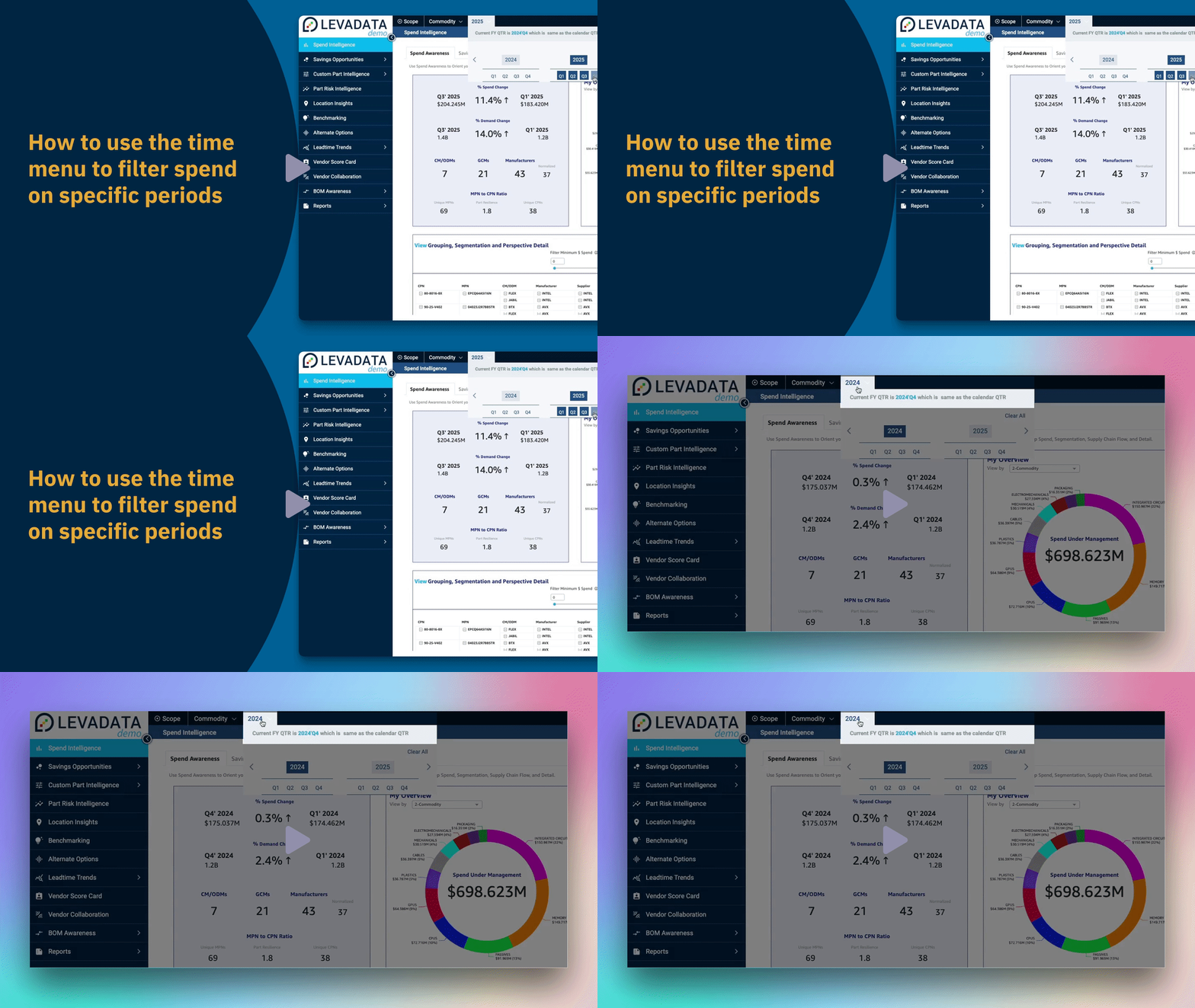
In this video, we'll guide you through the process of using the time menu to filter spend according to specific time periods in Levadata.
Steps to Apply Time Period Filters
Access the Time Menu: Begin by clicking on the year in the horizontal navigation menu.
Select Fiscal Year: You can apply time period filters that correspond to your fiscal calendar year. When you log in, Levadata defaults to the current fiscal year, which is highlighted in blue.
View Next Fiscal Year: To see the next fiscal year, simply click on 2025.
Automatic Updates: All charts and tables will update automatically each time you select a time period.
Select Specific Quarters: You also have the option to select specific quarters for more detailed filtering.
Thank you for watching this video, which illustrated how to use the time menu to apply filters corresponding to your fiscal calendar years and quarters.
Comments
0 comments
Please sign in to leave a comment.